Browser-based ArchiMate® 3.x modelling tool — Version 0.1
1. Overview
Arktik is a free browser-based ArchiMate® 3.x modelling tool — and it will stay free. No registration required. It runs entirely in your browser with no server or backend required. No data is saved to the server; all your models are stored locally in your browser. You can create, edit, and visualise enterprise architecture models using the full ArchiMate notation.
Key features
Completely free — no per-seat licensing, no trial, no paywall
No registration or sign-up required
Private by design — no data leaves your browser
Full ArchiMate 3.x element and relationship palette
Multiple diagram views with tabs
Open and save ArchiMate Open Exchange Format XML files
Undo/redo with 50+ step history
Export diagrams to SVG and PNG
Drag-and-drop element placement
Find and replace across the model
2. Getting Started
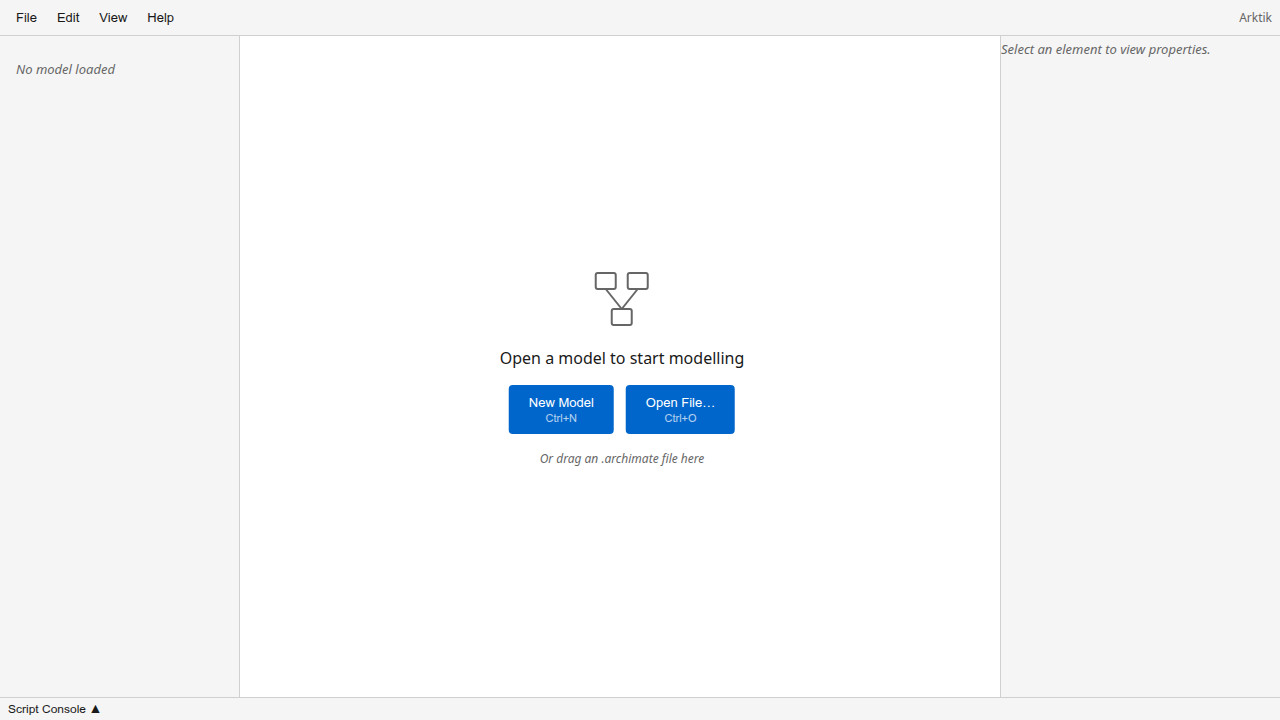
When you open Arktik, you see the welcome screen with options to create a new model or open an existing file.
Create a new model
Click New Model or press Ctrl+N.
An empty model with a Default View opens.
Start adding elements from the Palette panel.
Open an existing model
Click Open File… or press Ctrl+O.
Select an ArchiMate Open Exchange Format XML file from your computer.
The model loads and the Navigator tree populates with all elements, relationships, and views.
You can also drag and drop an Open Exchange Format XML file directly onto the application window to open it.
3. The Interface
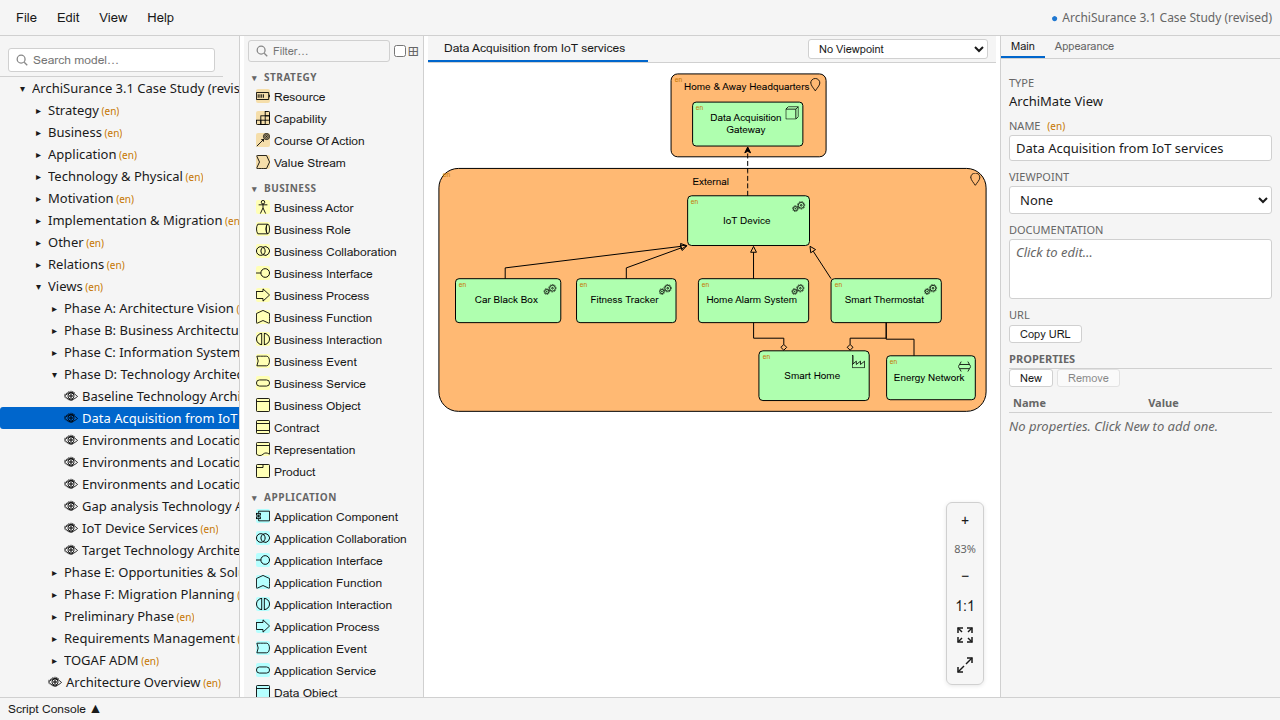
After opening a model, the interface shows four main areas:
Menu Bar (top) — File, Edit, View, and Help menus
Navigator (left) — Tree view of your model's elements, relationships, and views
Canvas (centre) — Diagram area where you view and edit ArchiMate views
Properties Panel (right) — Edit attributes, appearance, and documentation for selected elements
Palette (left, next to Navigator) — Element types you can drag onto the canvas
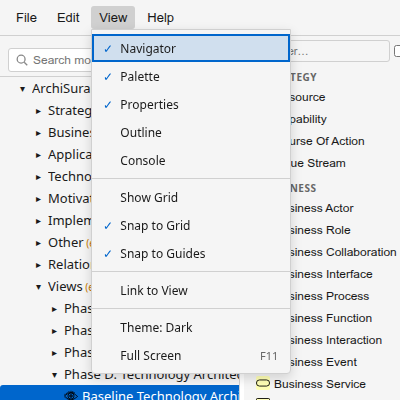
You can show or hide each panel from the View menu:
4. Working with Models
Saving your work
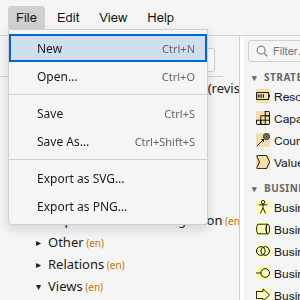
Press Ctrl+S or go to File → Save.
On first save, you'll be prompted to choose a file location.
Subsequent saves update the same file in place.
Use File → Save As… (Ctrl+Shift+S) to save a copy with a different name.
The unsaved changes indicator (●) appears next to the model name in the menu bar when you have modifications that haven't been saved yet.
Exporting diagrams
Open the view you want to export.
Go to File → Export as SVG… or Export as PNG…
The file downloads with the view's name.
Undo and redo
Ctrl+Z — Undo the last action
Ctrl+Y — Redo
Also available from Edit → Undo / Redo
5. The Canvas
The canvas is where you view and edit diagrams. Each open view appears as a tab at the top of the canvas area.
Navigation
Zoom in/out — Ctrl+= / Ctrl+-, or scroll wheel with Ctrl held
Pan — Hold middle mouse button and drag, or scroll wheel
Fit to window — Ctrl+Shift+F
Reset zoom — Ctrl+0
Adding elements
Select an element type from the Palette.
Click on the canvas to place it, or drag from the Palette directly onto the canvas.
The element appears and you can immediately type its name.
Connecting elements
Select the Magic Connector tool from the Palette, or hover over a source element to reveal its connection handle.
Drag from the source to the target element.
Choose the relationship type from the popup menu.
Editing element labels
Double-click an element on the canvas to edit its name.
Press Enter or click away to confirm.
Press Escape to cancel.
Context menu
Right-click on the canvas or an element to access contextual actions such as:
Delete element
Rename
Select connected elements
Align and distribute
Change appearance
6. The Palette
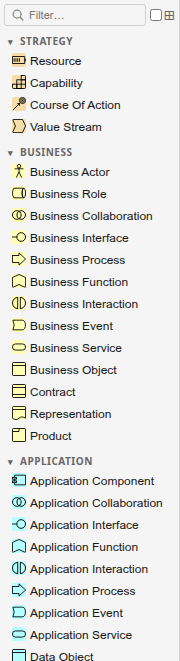
The Palette panel lists all ArchiMate element types organised by layer (Strategy, Business, Application, Technology, etc.) and all relationship types.
Using the Palette
Drag and drop — Drag any element type from the Palette onto the canvas to create an instance.
Click to activate — Click an element type to activate the placement tool, then click on the canvas to place it.
Sticky mode — Double-click a palette item to place multiple elements of the same type. Press Escape to deactivate.
Search — Type in the search box at the top to filter element types.
The Palette respects the active view's viewpoint. Elements not allowed in the current viewpoint appear greyed out.
7. The Navigator
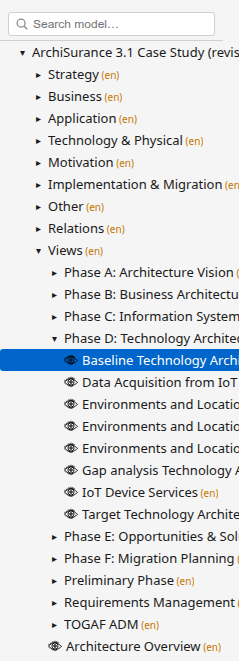
The Navigator shows the model's complete structure as a tree.
Navigating the model
Expand/collapse — Click the arrow next to a folder to expand or collapse it.
Open a view — Double-click a view to open it on the canvas.
Select an element — Click an element to select it and show its properties.
Drag to canvas — Drag an element from the Navigator onto the canvas to add it to the current view.
Organising elements
Drag elements between folders to reorganise your model.
Right-click a folder to create new sub-folders or elements.
Press F2 to rename the selected item.
Search
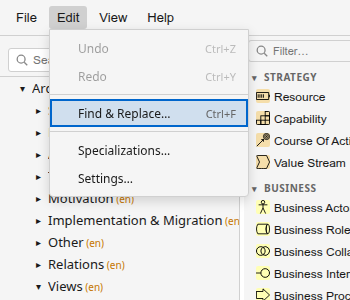
Use Ctrl+F to open Find & Replace, which searches across all element and view names in the model.
8. The Properties Panel
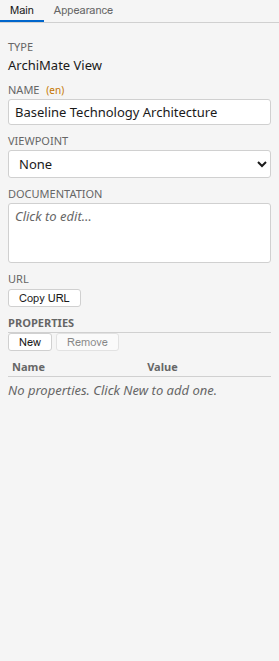
When you select an element, relationship, or view, the Properties panel shows its editable attributes.
Available tabs
Attributes — Name, type, and custom properties
Appearance — Fill colour, border, font, size
Documentation — Free-text documentation field
User Properties — Custom key-value properties
Analysis — Shows relationships and connections for the selected element
9. Keyboard Shortcuts
Action
Shortcut
New model
Ctrl+N
Open file
Ctrl+O
Save
Ctrl+S
Save As
Ctrl+Shift+S
Undo
Ctrl+Z
Redo
Ctrl+Y
Find & Replace
Ctrl+F
Delete selected
Delete
Select all
Ctrl+A
Zoom in
Ctrl+=
Zoom out
Ctrl+-
Fit to window
Ctrl+Shift+F
Reset zoom (100%)
Ctrl+0
Full screen
F11
Rename selected
F2
10. Tips & Troubleshooting
Tips
Hold Ctrl or Alt while dropping an element from the Navigator to suppress automatic connection creation.
Use the Outline minimap (View → Outline) to navigate large diagrams quickly.
Enable Snap to Grid or Snap to Guides from the View menu for precise element placement.
The dark/light theme can be toggled from the View menu.
Troubleshooting
Problem
Solution
File won't open
Ensure the file is a valid ArchiMate Open Exchange Format XML file (not a binary .archimate file from older Archi versions).
Save isn't working
In Firefox, use Save As (download) since the File System Access API isn't supported. Chrome and Edge support in-place save.
Diagram appears blank
Double-click a view in the Navigator to open it. The canvas is empty until you open a specific view.
Elements are greyed out in Palette
The active view has a viewpoint set that restricts which element types can be used. Change the viewpoint in the view's properties or switch to a view without a viewpoint.